


من جوابی که گذاشته بودم رو ویرایش کردم،دوباره از اول،کدارو کپی کنید.مشکل اینه که شمل کدارو توی متد onCreate قرار دادین و این کار اشتباهه،متد هارو نمیشه توی همدیگه نوشت.(متودارو میشه توی همدیگه صدا زد).بهر حال کدارو توی بدنه کلاس کپی کنید،بعنوان مثال دقیقا بعد از پایان متد onCreate میشه اونارو کپی کرد و یا دقیقا قبل از آخرین {. ضمنا کد اکتیویتی شما هر دوتا متد رو توی خودش داره، حواستون به اینم باشه که نمیشه یه متد رو دوبار کپی کرد.
بروز خطا
[message]
اشتراک در سوال
رای ها
[dataList]
پرسش و پاسخ
مشکل در آیکن های اکشن بار
مدیریت گفتگو
 MasterSPYware
9 سال پیش
MasterSPYware
9 سال پیش
آخرین تغییر: 9 سال پیش
سلام
من یک کارآموزم.
دوتا آیکن توو اکشنبار دارم.میخوام اینا کاری انجام بدم.مثلا فرگمنت باز کنن یا share کنن برنامه رو.
باید چیکار کنم؟؟؟
فقط اگه میشه ساده بیان کنین.ممنون
پاسخها 6
MasterSPYware
9 سال پیش
ممنون از لینکایی که دادی-اما من این کد ها رو کجا بذارم؟؟؟
1. You shouldn't add onClicks to ActionMenu items that way. Instead, you have to override onOptionsItemSelected like so:
 @Override
public boolean onOptionsItemSelected(MenuItem item){
    switch(item.getItemId()){
    case R.id.search:
        // your action goes here
        return true;
        default:
            return super.onOptionsItemSelected(item);
    }
}
And inflate your layout into the ActionBar as the following:
 @Override
public boolean onCreateOptionsMenu(Menu menu) {
    getMenuInflater().inflate(R.menu.mymenu, menu);
    return true;
}
2. ifRoom means place the action item on the action bar if there is space. However, space is determined by the following: less than half the width of the action bar horizontal space and the count is less than the max number of action items - Jake Wharton.
این کد های صفحه اصلی منه:
 package soft.kaziwa.com.nab;
import android.app.AlertDialog;
import android.content.Context;
import android.content.DialogInterface;
import android.content.Intent;
import android.net.ConnectivityManager;
import android.net.NetworkInfo;
import android.os.Bundle;
import android.support.design.widget.NavigationView;
import android.support.v4.widget.DrawerLayout;
import android.support.v7.app.ActionBarDrawerToggle;
import android.support.v7.app.AppCompatActivity;
import android.support.v7.widget.Toolbar;
import android.view.Gravity;
import android.view.Menu;
import android.view.MenuItem;
import android.view.View;
import android.widget.Button;
import android.widget.Toast;
import sliding_tabhost.Tab1;
import sliding_tabhost.Tab10;
import sliding_tabhost.Tab12;
import sliding_tabhost.Tab13;
import sliding_tabhost.Tab14;
import sliding_tabhost.Tab3;
import sliding_tabhost.Tab4;
import sliding_tabhost.Tab5;
import sliding_tabhost.Tab6;
import sliding_tabhost.Tab7;
import sliding_tabhost.Tab8;
import sliding_tabhost.Tab9;
public class Navigation_View1 extends AppCompatActivity {
private Toolbar toolbar;
    private NavigationView navigationView;
    private DrawerLayout drawerLayout;
    ActionBarDrawerToggle mDrawerToggle;
    Boolean isInternetPresent = false;
    ConnectionDetector cd;
@Override
    protected void onCreate(Bundle savedInstanceState) {
        super.onCreate(savedInstanceState);
        setContentView(R.layout.activity_main_activity2);
        final Button all = (Button) findViewById(R.id.btnAll);
        Button ads22 = (Button) findViewById(R.id.btnInAds);
        Button need22 = (Button) findViewById(R.id.btnInNeed);
        cd = new ConnectionDetector(getApplicationContext());
        assert all != null;
        all.setOnClickListener(new View.OnClickListener() {
            public void onClick(View v) {
                isInternetPresent = cd.isConnectingToInternet();
                if (isInternetPresent) {
                    startActivityForResult(new Intent( Navigation_View1.this, Tab12.class).setFlags(Intent.FLAG_ACTIVITY_CLEAR_TOP), -1);
                } else {
                    showAlertDialog(Navigation_View1.this, "No Internet Connection",
                            "ارتباط اینترنت برقرار نیست", false);
                }
            }
        });
        assert ads22 != null;
        ads22.setOnClickListener(new View.OnClickListener() {
            public void onClick(View v) {
                isInternetPresent = cd.isConnectingToInternet();
                if (isInternetPresent) {
                    startActivityForResult(new Intent( Navigation_View1.this, Tab13.class).setFlags(Intent.FLAG_ACTIVITY_CLEAR_TOP), -1);
                } else {
                    showAlertDialog(Navigation_View1.this, "No Internet Connection",
                            "ارتباط اینترنت برقرار نیست", false);
                }
            }
        });
        assert need22 != null;
        need22.setOnClickListener(new View.OnClickListener() {
            public void onClick(View v) {
                isInternetPresent = cd.isConnectingToInternet();
                if (isInternetPresent) {
                    startActivityForResult(new Intent( Navigation_View1.this, Tab14.class).setFlags(Intent.FLAG_ACTIVITY_CLEAR_TOP), -1);
                } else {
                    showAlertDialog(Navigation_View1.this, "No Internet Connection",
                            "ارتباط اینترنت برقرار نیست", false);
                }
            }
        });
        toolbar = (Toolbar) findViewById(R.id.toolbar);
        setSupportActionBar(toolbar);
        //Initializing NavigationView
        navigationView = (NavigationView) findViewById(R.id.navigation_view);
        //Setting Navigation View Item Selected Listener to handle the item click of the navigation menu
        navigationView.setNavigationItemSelectedListener(new NavigationView.OnNavigationItemSelectedListener() {
            // This method will trigger on item Click of navigation menu
            @Override
            public boolean onNavigationItemSelected(MenuItem menuItem) {
                //Checking if the item is in checked state or not, if not make it in checked state
                if(menuItem.isChecked()) menuItem.setChecked(false);
                else menuItem.setChecked(true);
                    drawerLayout.closeDrawers();
                switch (menuItem.getItemId()){
                    //Replacing the  content with ContentFragment Which is our Inbox View;
                    case R.id.search:
                        ConnectivityManager connectivityManager = (ConnectivityManager) getApplicationContext().getSystemService(Context.CONNECTIVITY_SERVICE);
                        NetworkInfo netInfo = connectivityManager.getActiveNetworkInfo();
                        if (netInfo == null) {
                            Toast.makeText(getApplicationContext(), "اوه!!اینترنت نداری!!!", Toast.LENGTH_LONG).show();
                        }
                        else {
                            getSupportFragmentManager().beginTransaction()
                                    .add(R.id.frame,new Tab1(),"TAB1_FRAGMENT")
                                    .addToBackStack("TAB1_FRAGMENT")
                                    .commit();
                        }
                        return true;
                    case R.id.btn_Insert_ads:
                        ConnectivityManager connectivityManager3 = (ConnectivityManager) getApplicationContext().getSystemService(Context.CONNECTIVITY_SERVICE);
                        NetworkInfo netInfo3 = connectivityManager3.getActiveNetworkInfo();
                        if (netInfo3 == null) {
                            Toast.makeText(getApplicationContext(), "اوه!!اینترنت نداری!!!", Toast.LENGTH_LONG).show();
                        }
                        else {

                            getSupportFragmentManager().beginTransaction()
                                    .add(R.id.frame,new Tab3(),"TAB3_FRAGMENT")
                                    .addToBackStack("TAB3_FRAGMENT")
                                    .commit();
                        }
                        return true;
                    case R.id.btnInsertNeed:
                        ConnectivityManager connectivityManager4 = (ConnectivityManager) getApplicationContext().getSystemService(Context.CONNECTIVITY_SERVICE);
                        NetworkInfo netInfo4 = connectivityManager4.getActiveNetworkInfo();
                        if (netInfo4 == null) {
                            Toast.makeText(getApplicationContext(), "اوه!!اینترنت نداری!!!", Toast.LENGTH_LONG).show();
                        }
                        else {
                            getSupportFragmentManager().beginTransaction()
                                    .add(R.id.frame,new Tab4(),"TAB4_FRAGMENT")
                                    .addToBackStack("TAB4_FRAGMENT")
                                    .commit();
                        }
                        return true;
                    case R.id.btnVipAds:
                        ConnectivityManager connectivityManager5 = (ConnectivityManager) getApplicationContext().getSystemService(Context.CONNECTIVITY_SERVICE);
                        NetworkInfo netInfo5 = connectivityManager5.getActiveNetworkInfo();
                        if (netInfo5 == null) {
                            Toast.makeText(getApplicationContext(), "اوه!!اینترنت نداری!!!", Toast.LENGTH_LONG).show();
                        }
                        else {
                            getSupportFragmentManager().beginTransaction()
                                    .add(R.id.frame,new Tab5(),"TAB5_FRAGMENT")
                                    .addToBackStack("TAB5_FRAGMENT")
                                    .commit();
                        }
                        return true;
                    case R.id.btnSaleAds:
                        ConnectivityManager connectivityManager6 = (ConnectivityManager) getApplicationContext().getSystemService(Context.CONNECTIVITY_SERVICE);
                        NetworkInfo netInfo6 = connectivityManager6.getActiveNetworkInfo();
                        if (netInfo6 == null) {
                            Toast.makeText(getApplicationContext(), "اوه!!اینترنت نداری!!!", Toast.LENGTH_LONG).show();
                        }
                        else {
                            getSupportFragmentManager().beginTransaction()
                                    .add(R.id.frame,new Tab6(),"TAB6_FRAGMENT")
                                    .addToBackStack("TAB6_FRAGMENT")
                                    .commit();
                        }
                        return true;
                    case R.id.btnMortageAds:
                        ConnectivityManager connectivityManager7 = (ConnectivityManager) getApplicationContext().getSystemService(Context.CONNECTIVITY_SERVICE);
                        NetworkInfo netInfo7 = connectivityManager7.getActiveNetworkInfo();
                        if (netInfo7 == null) {
                            Toast.makeText(getApplicationContext(), "اوه!!اینترنت نداری!!!", Toast.LENGTH_LONG).show();
                        }
                        else {
                            getSupportFragmentManager().beginTransaction()
                                    .add(R.id.frame,new Tab7(),"TAB7_FRAGMENT")
                                    .addToBackStack("TAB7_FRAGMENT")
                                    .commit();
                        }
                        return true;
                    case R.id.btnFavicon:
                        ConnectivityManager connectivityManager8 = (ConnectivityManager) getApplicationContext().getSystemService(Context.CONNECTIVITY_SERVICE);
                        NetworkInfo netInfo8 = connectivityManager8.getActiveNetworkInfo();
                        if (netInfo8 == null) {
                            Toast.makeText(getApplicationContext(), "اوه!!اینترنت نداری!!!", Toast.LENGTH_LONG).show();
                        }
                        else {
                            getSupportFragmentManager().beginTransaction()
                                    .add(R.id.frame,new Tab8(),"TAB8_FRAGMENT")
                                    .addToBackStack("TAB8_FRAGMENT")
                                    .commit();
                        }
                        return true;
                    case R.id.btnSign:
                        ConnectivityManager connectivityManager9 = (ConnectivityManager) getApplicationContext().getSystemService(Context.CONNECTIVITY_SERVICE);
                        NetworkInfo netInfo9 = connectivityManager9.getActiveNetworkInfo();
                        if (netInfo9 == null) {
                            Toast.makeText(getApplicationContext(), "اوه!!اینترنت نداری!!!", Toast.LENGTH_LONG).show();
                        }
                        else {
                            getSupportFragmentManager().beginTransaction()
                                    .add(R.id.frame,new Tab9(),"TAB9_FRAGMENT")
                                    .addToBackStack("TAB9_FRAGMENT")
                                    .commit();
                        }
                        return true;
                    case R.id.btnCallMe:
                        ConnectivityManager connectivityManager10 = (ConnectivityManager) getApplicationContext().getSystemService(Context.CONNECTIVITY_SERVICE);
                        NetworkInfo netInfo10 = connectivityManager10.getActiveNetworkInfo();
                        if (netInfo10 == null) {
                            Toast.makeText(getApplicationContext(), "اوه!!اینترنت نداری!!!", Toast.LENGTH_LONG).show();
                        }
                        else {
                            getSupportFragmentManager().beginTransaction()
                                    .add(R.id.frame,new Tab10(),"TAB10_FRAGMENT")
                                    .addToBackStack("TAB10_FRAGMENT")
                                    .commit();
                        }
                        return true;
                   default:
                        Toast.makeText(getApplicationContext(),"Somethings Wrong",Toast.LENGTH_SHORT).show();
                        return true;
                }
           }
        });
        // Initializing Drawer Layout and ActionBarToggle
        drawerLayout = (DrawerLayout) findViewById(R.id.drawer);
        mDrawerToggle = new ActionBarDrawerToggle(this,drawerLayout,null,R.string.openDrawer, R.string.closeDrawer){
            @Override
            public boolean onOptionsItemSelected(MenuItem item) {
                if (item != null && item.getItemId() == R.id.drawer) {
                    if (drawerLayout.isDrawerOpen(Gravity.RIGHT)) {
                        drawerLayout.closeDrawer(Gravity.RIGHT);
                    } else {
                        drawerLayout.openDrawer(Gravity.RIGHT);
                    }
                }
                return false;
            }
            @Override
            public void onDrawerClosed(View drawerView) {
                // Code here will be triggered once the drawer closes as we dont want anything to happen so we leave this blank
                super.onDrawerClosed(drawerView);
           }
            @Override
            public void onDrawerOpened(View drawerView) {
                // Code here will be triggered once the drawer open as we dont want anything to happen so we leave this blank
                super.onDrawerOpened(drawerView);
           }
        };
//Setting the actionbarToggle to drawer layout
        drawerLayout.setDrawerListener(mDrawerToggle);
       //calling sync state is necessay or else your hamburger icon wont show up
        mDrawerToggle.syncState();
   }
    @SuppressWarnings("deprecation")
    public void showAlertDialog(Context context, String title, String message, Boolean status) {
        AlertDialog alertDialog = new AlertDialog.Builder(context).create();
        alertDialog.setTitle(title);
        //پیام پنجره هشدار
        alertDialog.setMessage(message);
        //آیکن پنجره هشدار
        alertDialog.setIcon((status) ? R.drawable.success : R.drawable.fail);
        //دکمه OK
        alertDialog.setButton("OK", new DialogInterface.OnClickListener() {
            public void onClick(DialogInterface dialog, int which) {
            }
        });
        // نمایش هشدار
        alertDialog.show();
    }
    @Override
    public boolean onCreateOptionsMenu(Menu menu) {
        // Inflate the menu; this adds items to the action bar if it is present.
        getMenuInflater().inflate(R.menu.menu_main, menu);
        return true;
    }
    @Override
    public boolean onOptionsItemSelected(MenuItem item) {
        // Handle action bar item clicks here. The action bar will
        // automatically handle clicks on the Home/Up button, so long
        // as you specify a parent activity in AndroidManifest.xml.
        if (mDrawerToggle.onOptionsItemSelected(item)) {
            return true;
        }
        //noinspection SimplifiableIfStatement
        int id = item.getItemId();
       //noinspection SimplifiableIfStatement
        if (id == R.id.action_settings) {
            return true;
        }
        return super.onOptionsItemSelected(item);
    }
}
ممنون میشم پاسخ بدید
نظرات
sami
9 سال پیش
سلام.
برای حل این مشکل دو تا راه حل وجود داره.
1- اگه از toolbar استفاده کنید،براحتی می تونید درون تگ مربوط به toolbar توی فایل xml، هر widget ای(مثل تکست ویو و یا باتن ) که دوست دارین قرار بدین و توی اکتیویتی که دربرگیرنده toolbar هست برای اون شیء( تکست ویو ، باتن) setOnclickListener بنویسید.
2- استفاده از متدهای onCreateOptionsMenu و onOptionsItemSelected.
من هر دو روش رو توضیح میدم،اما شما ظاهرا روش دوم رو می پسندید ولی روش اول قدرت بیشتری برای کنترل toolbar به شما میده.
روش اول:
فرض کنید فایل xml مربوط به اکتیویتی در بردارنده toolbar به صورت زیر باشه:
<?xml version="1.0" encoding="utf-8"?>
<LinearLayoutxmlns:android="http://schemas.android.com/apk/res/android"
android:layout_width="match_parent"
android:layout_height="match_parent"
android:orientation="vertical"
<android.support.v7.widget.Toolbar
android:id="@+id/toolbar"
android:layout_width="match_parent"
android:layout_height="?attr/actionBarSize"
android:background="?attr/colorPrimary">
<LinearLayout
android:layout_width="match_parent"
android:layout_height="match_parent"
android:orientation="horizontal">
<TextView
android:id="@+id/txtToolbar"
android:layout_width="0dp"
android:layout_height="wrap_content"
android:layout_weight="1"
android:gravity="center"
android:paddingRight="20dp"
android:text="Toolbar Title" />
<ImageView
android:id="@+id/imgToolbar"
android:layout_width="wrap_content"
android:layout_height="wrap_content"
android:src="@mipmap/ic_launcher" />
<Button
android:id="@+id/btnToolbar"
android:layout_width="wrap_content"
android:layout_height="wrap_content"
android:text="Button" />
</LinearLayout>
</android.support.v7.widget.Toolbar>
</LinearLayout>
حالا توی اکتیویتی مورد نظر برای دسترسی به toolbar و عناصر داخل اون به شیوه زیر عمل می کنیم:
Toolbar toolbar = (Toolbar) findViewById(R.id.toolbar);
setSupportActionBar(toolbar);
ImageView imgToolbar = (ImageView) toolbar.findViewById(R.id.imgToolbar);
Button btnToolbar = (Button) toolbar.findViewById(R.id.btnToolbar);
final TextView txtToolbar = (TextView) toolbar.findViewById(R.id.txtToolbar);
imgToolbar.setOnClickListener(new View.OnClickListener() {
    @Override
public void onClick(View v) {
        txtToolbar.setText("ImageView Clicked.");
}
});

btnToolbar.setOnClickListener(new View.OnClickListener() {
    @Override
public void onClick(View v) {
        txtToolbar.setText("Button Clicked.");
}
});
روش دوم:
با فرض اینکه فایل xml منویی که می خوایم توی toolbar نمایش بدیم به صورت زیر هست:
این فایل باید در این مسیر باشه.(res.menu.main)
فایل main.xml :
<?xml version="1.0" encoding="utf-8"?>
<menu xmlns:android="http://schemas.android.com/apk/res/android"
    xmlns:app="http://schemas.android.com/apk/res-auto">
    <item
        android:id="@+id/action_item1"
        android:orderInCategory="100"
        android:title="Item 1"
        app:showAsAction="never" />
     <item
        android:id="@+id/action_item2"
        android:orderInCategory="100"
        android:title="Item 2"
        app:showAsAction="never" />
     <item
        android:id="@+id/action_item3"
        android:orderInCategory="100"
        android:title="Item 3"
        app:showAsAction="never" />
</menu>
حالا توی اکتیویتی در بر گیرنده toolbar دو متد زیر رو به صورت زیر Override می کنیم :
        @Override
    public boolean onCreateOptionsMenu(Menu menu) {
        getMenuInflater().inflate(R.menu.main, menu);
        return true;
    }

	@Override
    public boolean onOptionsItemSelected(MenuItem item) {
        int id = item.getItemId();
        if (id == R.id.action_item1) {
	    Toast.makeText(this, "item 1 Clicked.", Toast.LENGTH_LONG).show();
            return true;
        }else if (id == R.id.action_item2) {
	    Toast.makeText(this, "item 2 Clicked.", Toast.LENGTH_LONG).show();
            return true;
        }else if (id == R.id.action_item3) {
	    Toast.makeText(this, "item 3 Clicked.", Toast.LENGTH_LONG).show();
            return true;
        }
        return super.onOptionsItemSelected(item);
    }
پایان.
نظرات
MasterSPYware
9 سال پیش
ممنون دوست من.همونطوری که گفتی روش دوم بهتر و مورد پسنده
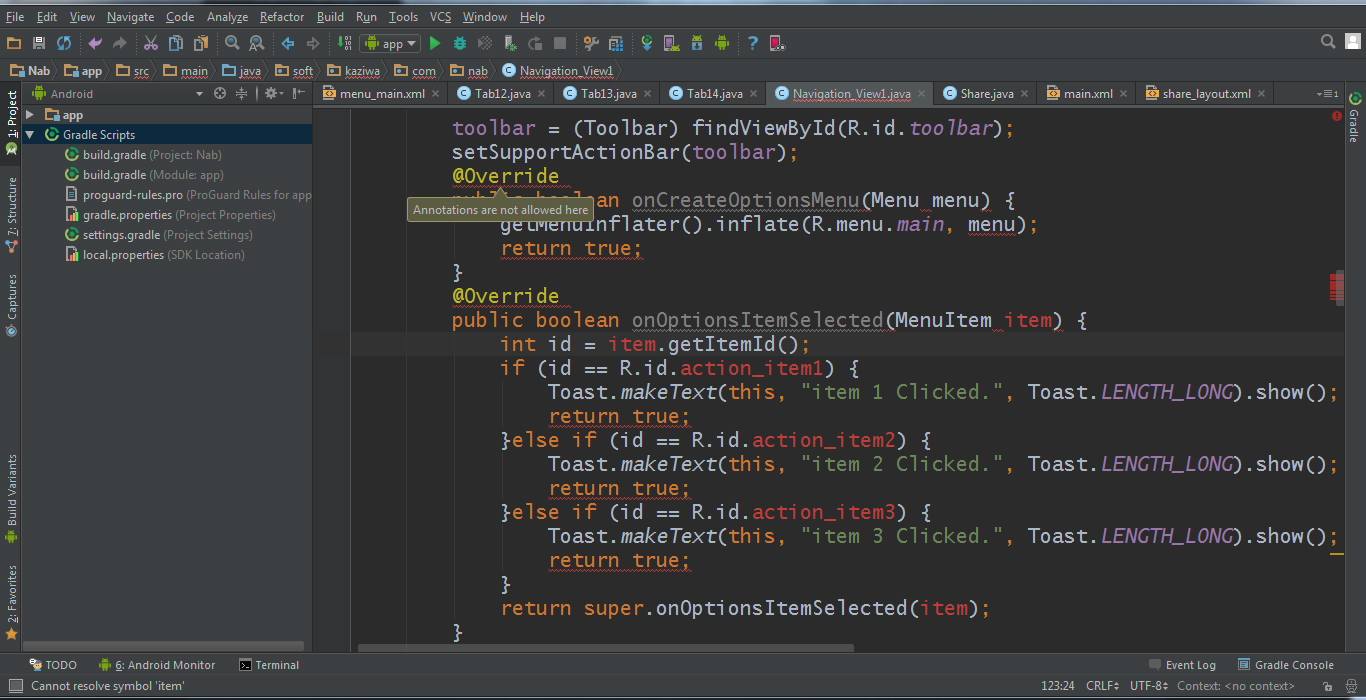
اما متاسفانه این مشاکل پیش اومده(خخخ مشاکل!!!)
توو تصویر گذاشتم که بهتر متوجه بشی
تاکید میکنم(من تازه کارم دوست من).مرسی از وقتی که میذاری
نظرات
MasterSPYware
9 سال پیش
ممنون
MasterSPYware
9 سال پیش
عالی بود دوست من.
حالا اگه یکی ازین آیکن ها بخواد وظیفه اشتراک فایل نصبی اپلیکیشن رو انجام بده باید چی بنویسم؟؟؟
منظورم همون share اپلیکیشنه
نظرات
sami
9 سال پیش
همیشه قبل از پرسیدن هر نوع سوالی،توی انجمن جستجو کنید شاید قبلا سوال شما جواب داده شده باشه،جواب این سوال توی انجمن هست،"عبارت توابع و کلاسهای کوچیک و مفید" رو جستجو کنید.
MasterSPYware
9 سال پیش
خب دوست من نیاز به سطح دسترسی بالاست.
خواستم اشتراک بخرم اما اصلا چنین قابلیتی نداریم!!!
فقط با گذشت زمان باید عضویت ویژه بشم!!!!!!!!!!!!!
اگه ممکنه یا راه حل ویژه شدن رو بگین یا یه راهنمایی بکنین.
ممنون
sami
9 سال پیش
برای عضو ویژه شدن و دسترسی کامل به انجمن،باید پکیج آموزش برنامه نویسی اندروید رو بخرید.
MasterSPYware
9 سال پیش
خب من الان 250تومن ندارم که
انصاف هم نیست واسه یه استکان شیر گاو شیرده بخریم.
اگه ممکنه فقط همون 4تا خط رو بهم آموزش بدین.ممنون میشم
MasterSPYware
9 سال پیش
بدمیگم؟؟
قصد خرید آموزش وب و اندروید رو دارم.اما هنوز نه-باید یه درک سطحی پیدا کنم که بهتر متوجه آموزشا بشم
MasterSPYware
9 سال پیش
ای کاش اکانت ویژه یک روزه هم داشتیم :(((
 خواست خدایی
9 سال پیش
خواست خدایی
9 سال پیش
سلام
متاسفانه گذاشتن آموزشش از حوصله انجمن خارجه
پیشنهاد میکنم یا آموزش ها رو بخرید یا از فروم های خارجی وبه دنبال آموزشش باشین - در مورد خرید اکانت و موارد اینچنینی هم اعضا نه میتونن نظری بدن نه کمکی چون موضوع مستقیما به خود تیم آنکو ایکس ربط داره - موفق باشین
MasterSPYware
9 سال پیش
خب پس اگه لینک های مشابه خارجی دارین محبت بفرمایید.ممنون
خواست خدایی
9 سال پیش
منم بخوان لینکی بهتون بدم تو گوگل سرچ میکنن . تو گوگل سرچ کنین نتیجش رو میبینید
به استک اور فلو هم میتونید مراجعه کنید که یه فروم خوب خارجی هست
MasterSPYware
9 سال پیش
پس لطفا متنی که باید سرچ کنم رو معرفی کنین
خواست خدایی
9 سال پیش
stack overflow how to work with toolbar -
stack overflow how to work with Action bar Icons
sami
9 سال پیش
مطمئنا اگه بخواین اینجوری ادامه بدین همیشه در همین حد می مونید و دانشتون بیشتر نمیشه و صرفا کارتون میشه کپی کردن کدهای دیگران...
بهتره تغییر رویه بدین و حداقل یه کم تلاش کنید و یه سرچ کوچولو تو گوگل بزنید و اگه به جواب نرسیدین بعد بیان اینجا سوالتون رو مطرح کنید.
بهر حال من جواب این سوال رو براتون اینجا می نویسم.
از این متد استفاده کنید.
 public void sendAppItself(Activity paramActivity, String paramStringToastMsg) throws IOException {
		Toast.makeText(paramActivity, paramStringToastMsg, Toast.LENGTH_SHORT).show();
		PackageManager pm = paramActivity.getPackageManager();
		ApplicationInfo appInfo;
		try {
			appInfo = pm.getApplicationInfo(paramActivity.getPackageName(),
					PackageManager.GET_META_DATA);
			Intent sendBt = new Intent(Intent.ACTION_SEND);

			sendBt.setType("*/*");
			sendBt.putExtra(Intent.EXTRA_STREAM,
					Uri.parse("file://" + appInfo.publicSourceDir));

			Log.v("PACKAGEDIR: ", appInfo.publicSourceDir);
			paramActivity.startActivity(Intent.createChooser(sendBt,
					paramStringToastMsg));

		} catch (NameNotFoundException e1) {
			e1.printStackTrace();
		}

	}
این متد رو مثل متدهای قبلی توی اکتیویتی کپی کنید و به صورت زیر اونو توی toolbar صدا بزنید.
 try {
	sendAppItself(this, "ارسال برنامه با بلوتوث");
	} catch (IOException e) {
		// TODO Auto-generated catch block
		e.printStackTrace();
	}
نظرات
MasterSPYware
9 سال پیش
ممنون دوست من.اما بنظر من کدتون بدرد من نمیخوره.من خودم یک تابع نوشتم (البته با استفاده از انجمن ها)
توی این تابع من میخوام بجای اینکه برنامه تعیین کنه چه چیزی از چه مسیری اشتراک گذاری بشه،یک سلکتور دراختیار کاربر بذاره که خودش اون فایل رو از مسیر گوشیش انتخاب کنه و به اشتراک بذاره.همین.
اینم کد من:
 File root = android.os.Environment.getExternalStorageDirectory();
            File dir = new File (root.getAbsolutePath() + "/MyFolder");
            String fileName = "my_file.mp3";
            File file = new File(dir, fileName);
            Uri outputFileUri = Uri.fromFile(file);
            Intent intent = new Intent(Intent.ACTION_SEND);
            intent.addFlags(Intent.FLAG_ACTIVITY_CLEAR_WHEN_TASK_RESET);
            intent.addFlags(Intent.FLAG_GRANT_READ_URI_PERMISSION);
            intent.setType("audio/*");
            intent.putExtra(Intent.EXTRA_STREAM, outputFileUri);
            startActivity(Intent.createChooser(intent, "اشتراک از طریق.."));
نظرات
MasterSPYware
9 سال پیش
البته اینطوری هم میشه که بجای اینکه سلکتور و انتخاب آزاد باشه(فایل نصبی اپلیکیشنی که داریم باهاش کار میکنیم به اشتراک گذاشته بشه)
MasterSPYware
9 سال پیش
sami jan plz
sami
9 سال پیش
من از سوال شما اینو برداشت کردم که می خواین،نرم افزار خودتون که رو گوشی نصب شده رو به اشتراک بذارین،اگه می خواین این کارو بکنید،اون کدی که من نوشتم،این کارو براتون انجام میده...
MasterSPYware
9 سال پیش
درسته.اما چند تا مشکل دارم.
اول اینکه paramActivity چیه و کجاست؟؟؟چون ایمپورت نشد.
دوم اینکه String paramStringToastMsg چیه؟؟کجا باید ساخته بشه
MasterSPYware
9 سال پیش
درسته.اما چند تا مشکل دارم.
اول اینکه paramActivity چیه و کجاست؟؟؟چون ایمپورت نشد.
دوم اینکه String paramStringToastMsg چیه؟؟کجا باید ساخته بشه
sami
9 سال پیش
اینا پارامتر ورودی متد هستند و نیازی به ایمپورت شدن ندارن،شما باید کلاس Activity رو ایمپورت کنید.حالا وقتی متد رو فراخوانی می کنید باید بعنوان پارامتر ورودی یه شیء از جنس اکتیویتی و یه شیء استرینگ بهش پاس کنید که من حتی این کارو هم براتون انجام دادم.یعنی به جای اکتیویتی this و به جای استرینگ اون پیام "ارسال برنامه با بلوتوث"، رو به متد ارسال کردم...
پاسخگویی و مشاهده پاسخ های این سوال تنها برای اعضای ویژه سایت امکان پذیر است .
چنانچه تمایل دارید به همه بخش ها دسترسی داشته باشید میتوانید از این بخش لایسنس این آموزش را خریداری نمایید .
ویرایش
پیام
نظرات